How to Update Contacts in EDMS
Do you have an EDMS account, linked to your site?
If not, go back to the EDMS Help website, and follow instructions for "External Sign Up Instructions" then "Linking a Site to your EDMS account."
Sign into EDMS
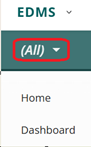
- Click the down arrow next to "All" and choose your site.
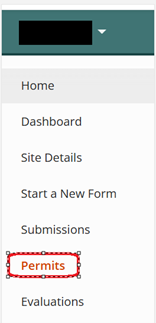
- Click on "Permits" from the menu on the left-hand side of the screen.
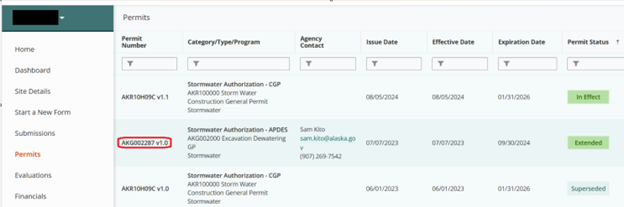
- Click on the permit you are interested in updating the contact for.
- Click on Contacts tab.
- Click on the Contact you are interested in updating.
- Update the necessary information, and
- Click "Save".
1. Click the down arrow next to "All" and choose your site.
(On the upper left side of the window). If you only have one site associated with your account, it may already be selected.
2. Click on "Permits" from the menu on the left-hand side of the screen.
3. Click on the permit you are interested in updating the contact for.
4. Click on Contacts tab.
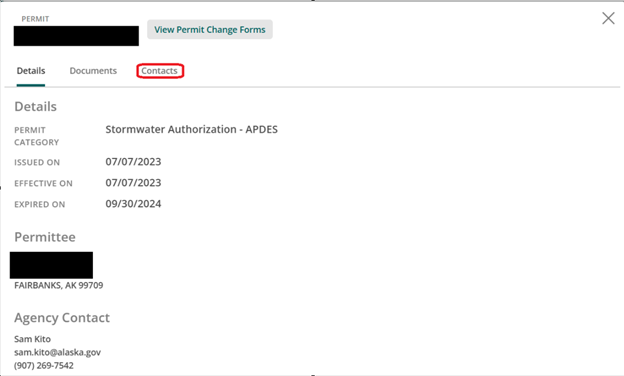
NOTE: You will not be able to update any contacts with the role of Permittee, Responsible Party, or Delegated Authority. Updates to these roles require a form to be submitted within EDMS. For example: Delegation of Authority Form or Change of Responsiblity Party Form.
5. Click on the Contact you are interested in updating.
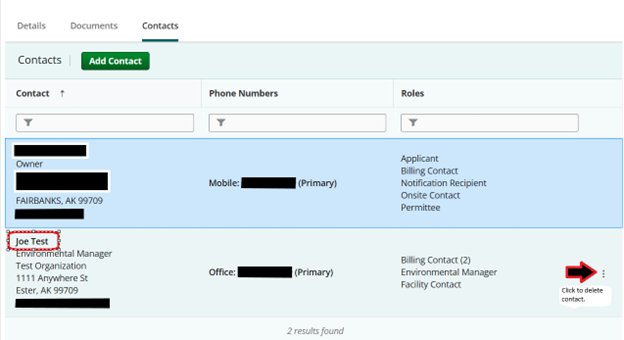
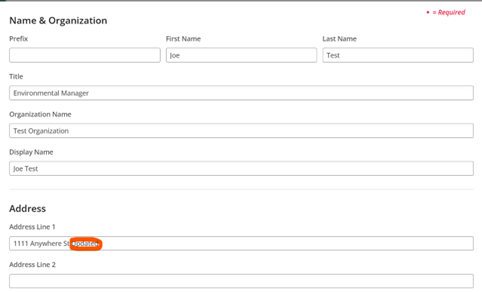
6. Update necessary information
7. and click Save.
 Indicates an external site.